Container Registry Management
Last Updated: November 13, 2026
Registry Management allows users to manage access to external container image registries (Docker Hub and GitHub).
Before You Begin
- Configure a read-only Personal Access Token (PAT) with access to pull images for every deployment using the recommended provider settings:
- Github.
- Token Type: Personal access token (classic).
- Expiration: No expiration.
- Scopes: Select read:packages only.
- Docker Hub.
- Expiration: No expiration.
- Repository Permissions: Repo Read-only.
- Github.
Note: For additional details on token generation and lifecycle management, please refer to your provider's official documentation.
Update Linked Accounts
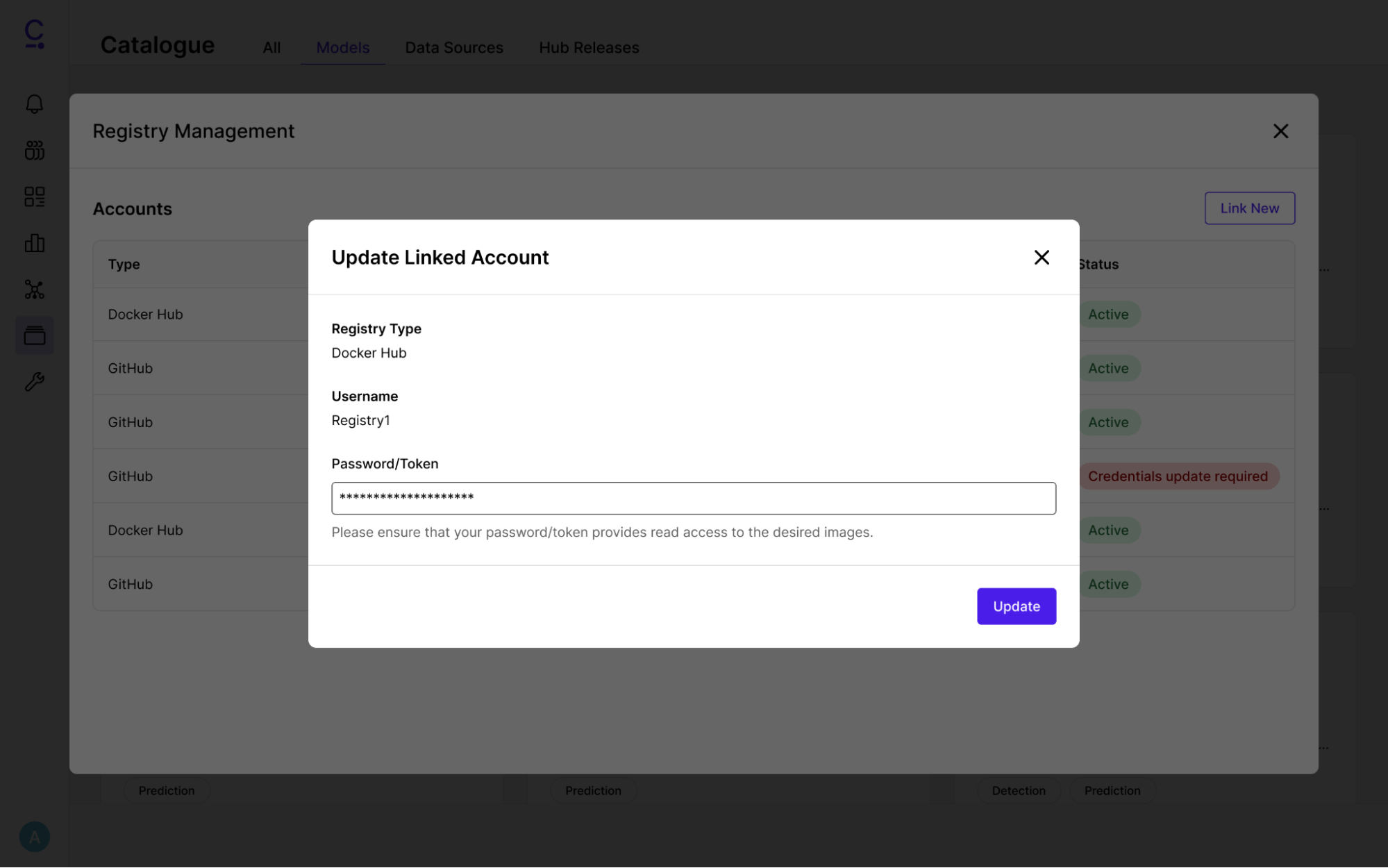
Password/Token should always be updated when access to the registry has been changed, otherwise errors may occur trying to deploy assets associated with the registry account.
-
Navigate to the Catalogue page and then select the Models tab.
-
Click Registry Management. From the list, locate the desired account by its username.
-
Select the account. In the pop-up that appears, input the new Password/Token and click Update when done.
Add a New Registry Account
-
Navigate to the Catalogue page and then select the Models tab.
-
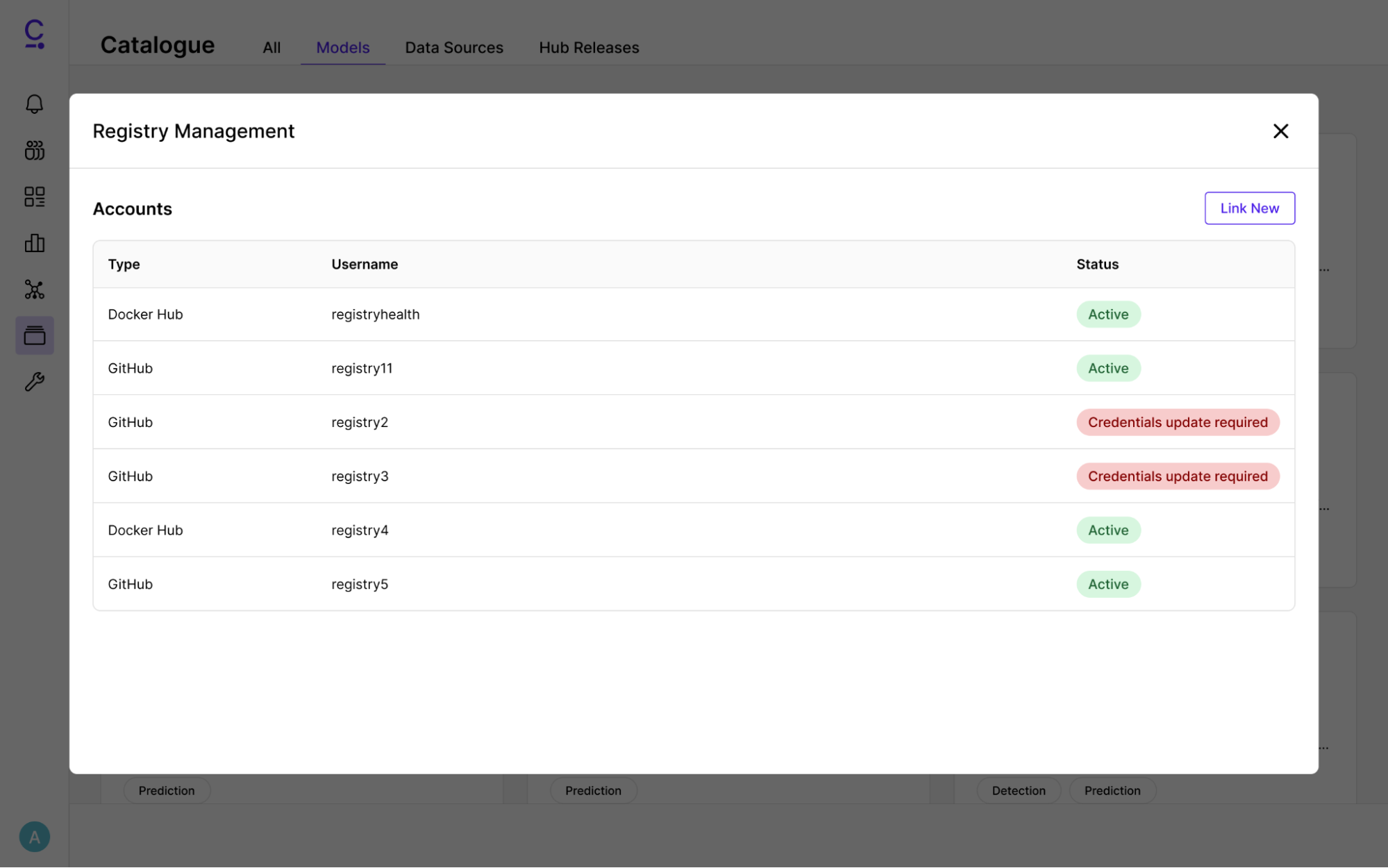
Select Registry Management. In Registry Management, you can view all your previously linked Docker Hub/GitHub accounts and their statuses.
-
To add a new account, click Link New.
-
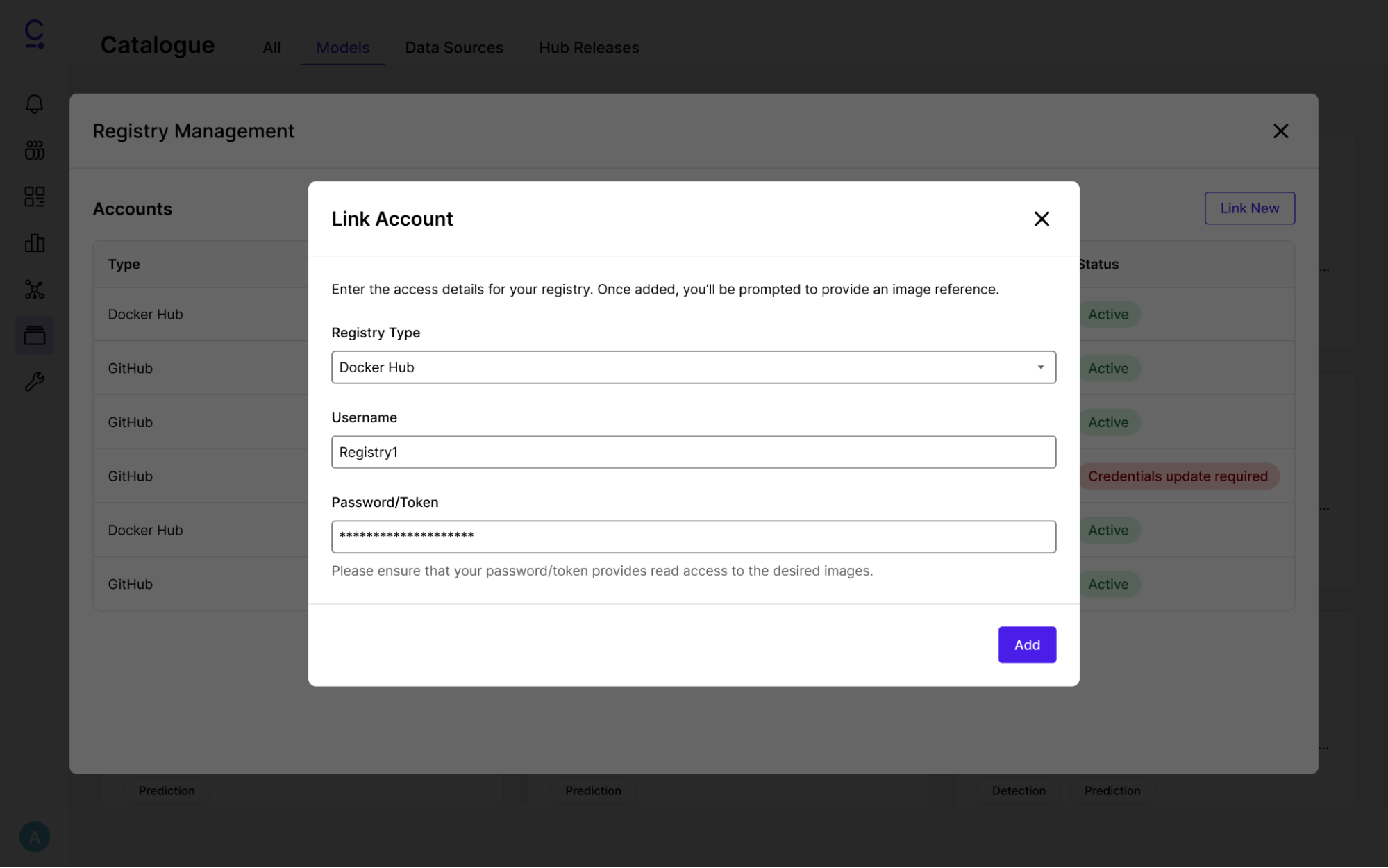
In the pop-up form that appears, indicate the following information:
Field Description Registry Type Select the registry type, currently support Github and Docker Hub. Username This is the username for your registry account. Password/Token Enter your Password/Token associated with the account. -
Click Add and your new account will show up in the registry management list.