
User Management
Last Updated: November 13, 2026
User Management Overview
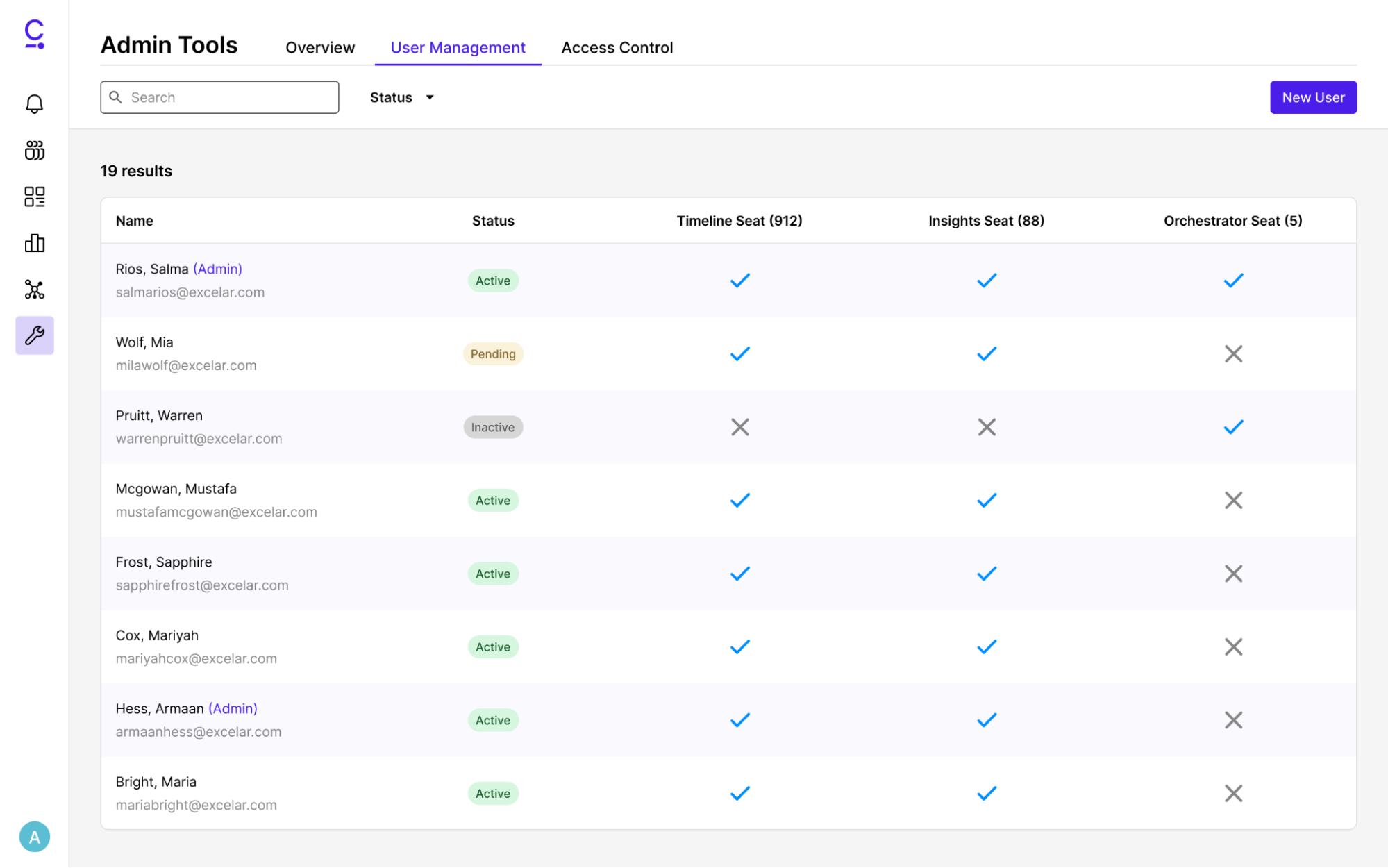
Navigate to Admin Tools in the left sidebar, and select the User Management tab. The table lists all users registered to your organization along with their account status and allocated module seats.
-
Status Badges:
- Active: User has activated their account and currently has access.
- Pending: An activation email has been sent, but the user has not completed account set up.
- De-activated: User account has been deactivated and no longer in use.
-
Seat Allocation Columns (Timeline, Insights, Orchestrator Seat): Displays total number of users with access to each module.
Add a New User
-
In Admin Tools, navigate to the User Management page, then click the New User button.
-
In the pop-up form that appears, provide the following information:
Field Description First Name — Last Name — Email Address — Organization Permission Level Select Admin to allow this user to have administrative rights to manage organization users and module seats. Module Seats Check the boxes for the modules this user is allowed to access.
- Click Send Activation Email. An activation email will be sent to the new user’s email with instructions to activate their account. This user will show as “Pending” on the main user management page until their account is activated.
- Re-send Activation Email: If the user is unable to receive the activation link, ensure that they have checked their Junk inbox. A new activation email may be sent by selecting the user in the user management list and clicking Resend Activation Email in the pop-up that appears. The previous activation link will expire.
Manage Existing Users
Add or remove seat types, change an existing users organization permission level to admin, and reset a user’s password.
-
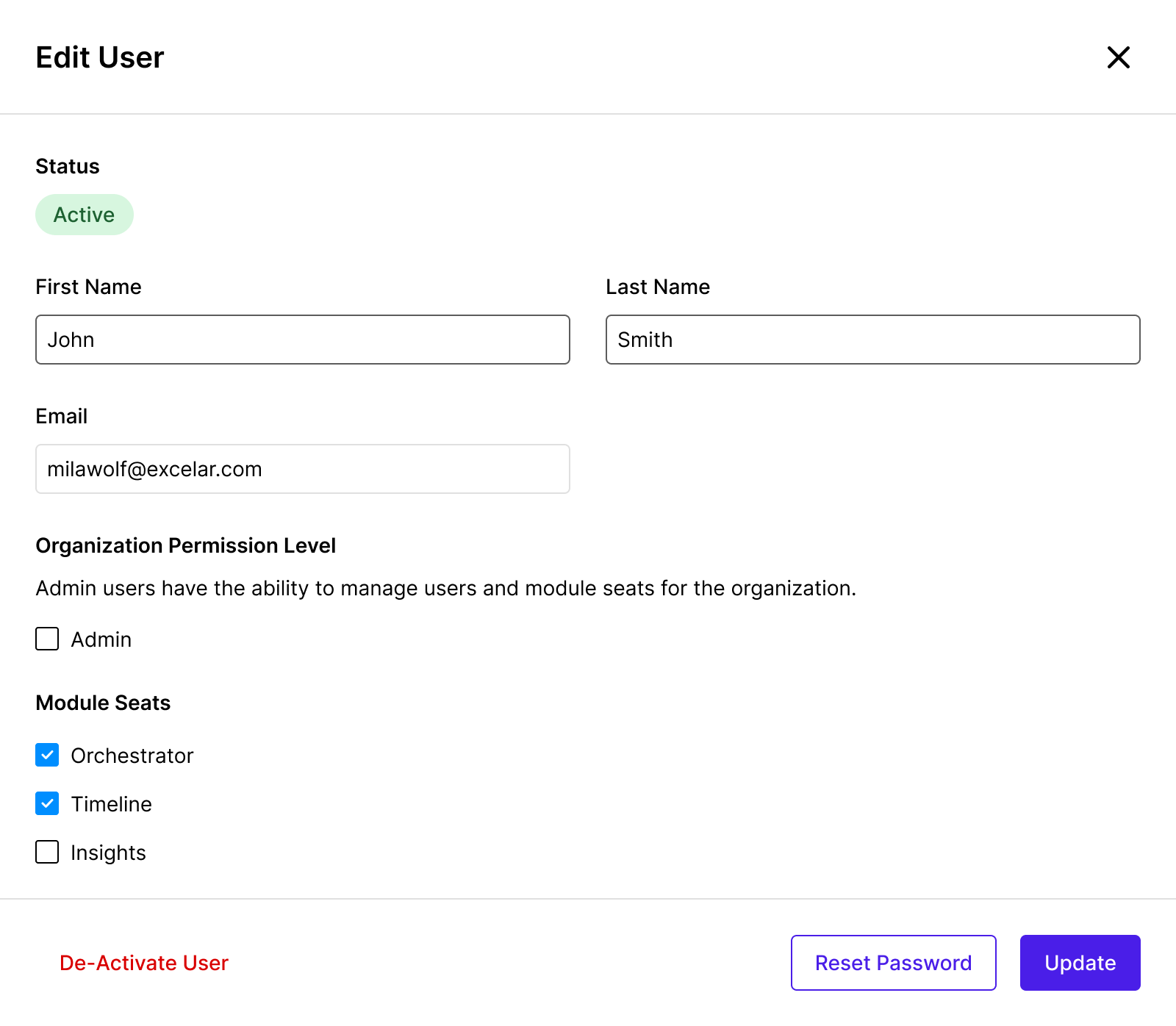
Select the user from the User Management list to change their organization settings.
-
In the pop-up that appears, update the following settings as desired:
Field Description First Name — Last Name — Organization Permission Level Check or uncheck Admin to modify administrative management capabilities. Module Seats Grant or revoke module access for Orchestrator, Timeline, or Insights. -
Click Update to save changes.
-
Reset Password: Click Reset Password to dispatch a password reset email to the user. The user will need to follow the link to reset their password and log in again.
Reactivating and Deactiviating Users
- Select the user from the user management list.
- In the pop-up that appears, click Re-activate User or De-Activitate User.